
You can move insurance plans from one carrier to another.
Note: Moving insurance plans between carriers requires the Merge Carriers/Migrate Plans security right.
To move insurance plans to another carrier
How to get to there
-
From the Home menu, under Insurance, select Carriers.
The Insurance Carriers page displays.
-
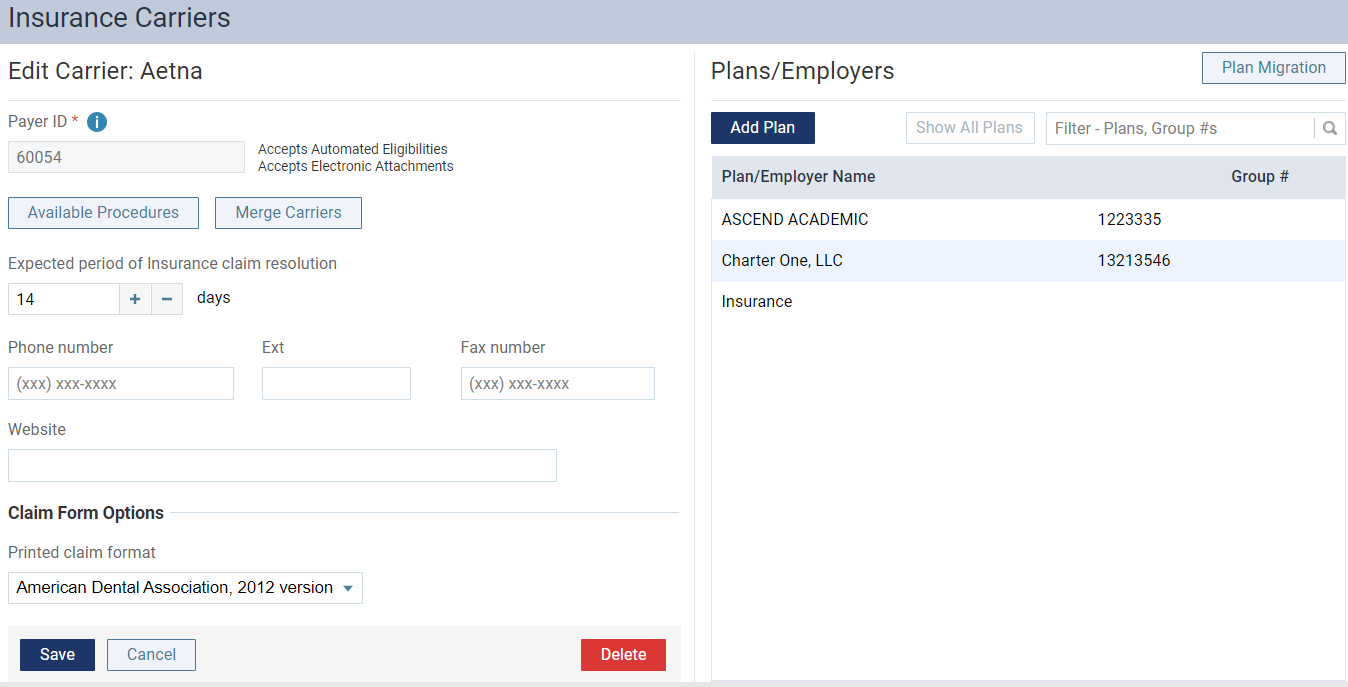
On the Insurance Carriers page, clicktap an insurance carrier.
Tip: To help you locate an insurance carrier quickly, in the Filter field, enter part or all of a carrier's name, plan/employer, or group number to filter the carrier list so that it displays only those carriers that match what you enter.

The options to edit the insurance carrier become available.
-
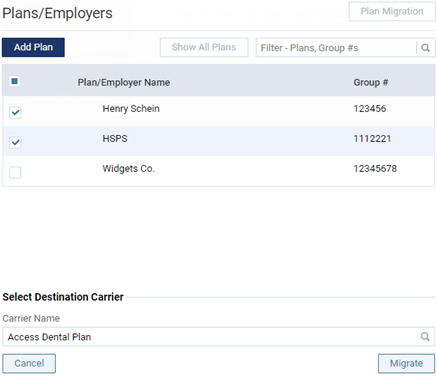
Next to Plans/Employers, clicktap Plan Migration.
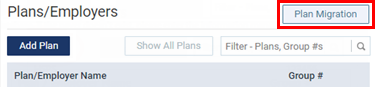
The options for migrating insurance plans become available.
-
Select the check box of each plan you want to move or select the check box at the top of the list to select all plans.
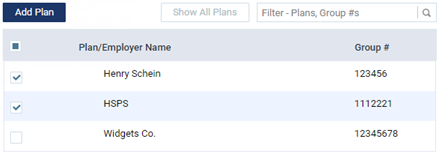
Tip: To help you locate a plan quickly, in the Filter field, enter part or all of the plan/employer name or group number to filter the plan list so that it displays only those plans that match what you enter.
-
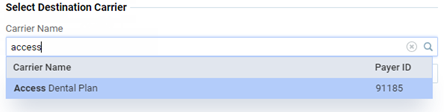
Under Select Destination Carrier, clicktap in the Carrier Name field, enter an insurance carrier's name or payer ID to narrow the list of matching carriers, and select the carrier to which you want to move the selected plans.
-
To proceed, clicktap Migrate.
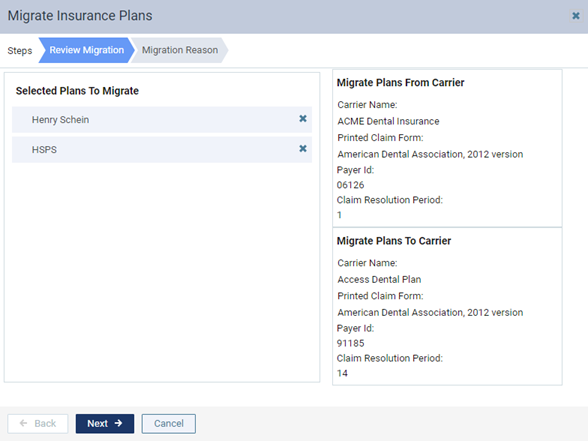
The Migrate Insurance Plans window displays with the Review Migration tab selected.
-
Make sure that the following details are correct:
-
Selected Plans To Migrate - The plans to be migrated. If needed, you can clicktap the corresponding X to remove a plan.
Note: A red error
 icon displays by a plan name if that plan has claims that are associated with an open bulk insurance payment. You must finalize that bulk insurance payment before you can move the plan to another carrier. You can either remove the applicable plans from the list of plans to migrate, or cancel the migration so that you can finalize bulk insurance payments as needed and then return to this point in the migration process.
 -
Migrate Plans From Carrier - The information for the source carrier.
-
Migrate Plans To Carrier - The information for the destination carrier.
-
-
ClickTap Next.
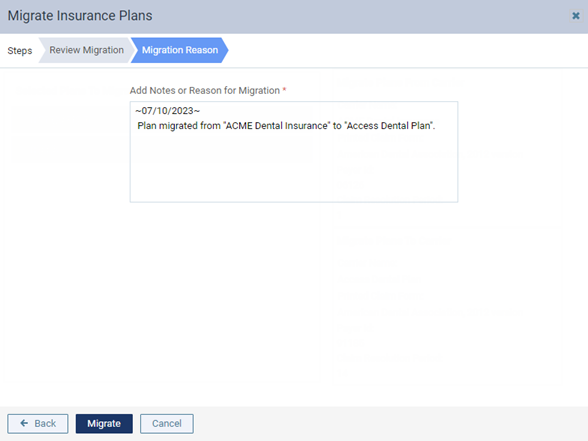
The Migration Reason tab is selected.
-
By default, today's date and the names of the source and destination carriers display in the Add Notes or Reason for Migration field. Change or add to the text as needed. The text will be inserted into the Note field for each migrated plan.
-
ClickTap Migrate.
Comments
0 comments
Please sign in to leave a comment.