
You can edit a locked transaction by unlocking it.
Note: You need the Review ledger options and Override Locked Transaction permissions set to unlock a transaction. If you do not have the permission set, a different user with the permissions set can unlock the transaction on your behalf at your workstation.
How to get there
-
From the Patient menu, under Financial, select Ledger.
The patient's Ledger page displays.
Tip: You can also access the Ledger page from the patient's Overview page > Ledger widget.
Note: If the correct patient is not already selected, use the Patient Search field to access the patient's record.
-
Open a patient's Ledger page.

-
Select a procedure or a payment.
The View Procedure or the View Payment window displays.

-
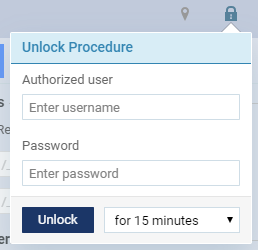
ClickTap the Unlock icon to display the Unlock Procedure tooltip.
Note: You cannot unlock a transaction that is attached to a claim.
-
Enter your credentials in the Authorized user and the Password fields.
Important: If you do not have the Review ledger options and Override Locked Transaction permissions set, you can have a different user with the permissions set to enter their credentials to unlock the transaction.
-
(Optional) ClickTap the drop-down menu to select how long you want this transaction to remain unlocked.

-
ClickTap Unlock.
Comments
0 comments
Please sign in to leave a comment.