
You can move a single image or a series of images from one patient's record to another.
Important: You can move images only if they are not associated with procedures that are attached to insurance claims.
Note: The procedures that are associated with the images that you are moving will be deleted or voided (if older than 120 days) in the original patient's record and posted to the new patient's record.
To reassign images to a different patient
How to get there
-
From the Patient menu, under Clinical, select Imaging.
The patient record displays with the Imaging tab selected.
Tip: You can also access imaging from other clinical areas such as Chart, Progress Notes, Quick Exam, Perio, or Tx Planner.
Note: If the correct patient is not already selected, use the Patient Search field to access the patient's record.
-
On the patient's record > Imaging tab, clicktap the Imaging tab menu and select Show Image History.

The patient's imaging page opens to the history view, and the most recent image or series (such as a full mouth series or bitewings) is selected by default on the Images tab.

-
Select an image or series (such as a full mouth series or bitewings).
-
On the corresponding options menu, clicktap Reassign exam.
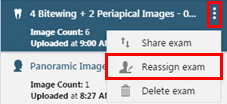
The Reassign Exam window displays.

-
Use the to the following patient search field to search for and select the name of the patient to whom you want to move the images.
-
ClickTap Reassign Exam.
Comments
0 comments
Please sign in to leave a comment.