
You can update the insurance information attached to a patient's record as needed.
To update a patient's insurance
How to get there
-
From the Patient menu, under General, select Overview.
The patient's Overview page displays.
Note: If the correct patient is not already selected, use the Patient Search field to access the patient's record.
How to get there
-
From the Patient menu, under Insurance, select Insurance Information.
The patient's Insurance Information page displays.
Note: If the correct patient is not already selected, use the Patient Search field to access the patient's record.
-
Complete one of the following:
-
On a patient's Overview page, the Insurance widget displays the patient's insurance plans. ClickTap an insurance plan's link.

-
On a patient's Insurance Information page, select an insurance plan.
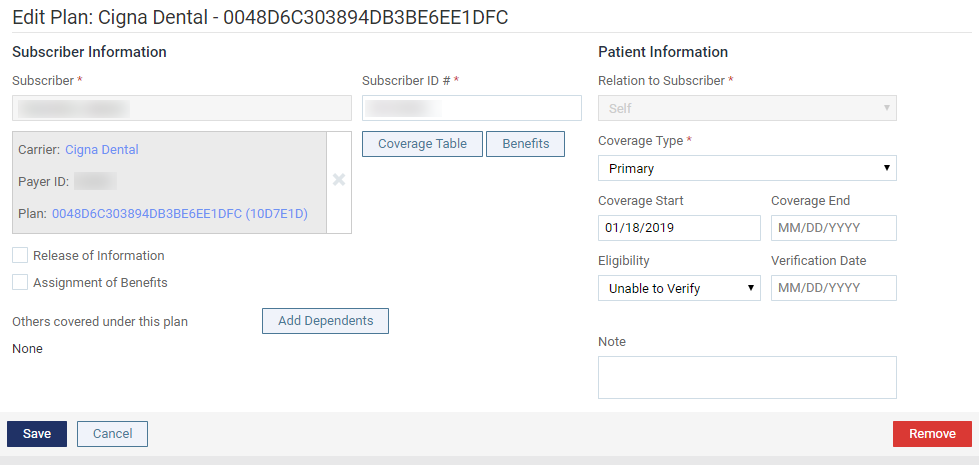
The options for editing insurance information become available.
-
-
Modify the information fields as necessary, such as the subscriber ID, relation to the subscriber, coverage order, and coverage period.
-
Subscriber and Plan - The subscriber and insurance associated with that subscriber. To change the subscriber and plan, click intap the Subscriber field, search for and select a different provider, and then select a plan. To change only the plan, select a different plan for the selected subscriber. To show or hide the plan selection list, clicktap the Show
 icon or the Hide
  icon.
icon.Tip: ClickTap the Carrier and Plan name to open a hyperlink to that page.
-
Subscriber ID # - The ID used to identify the subscriber of the insurance plan on claims that are submitted to the corresponding carrier. The subscriber ID might not be the same as the subscriber's Social Security number. Changing the ID will affect the subscriber and all patients covered under that subscriber.
-
Release of Information - The subscriber authorizes the release of information to the practice. With this check box selected, "Signature on File" displays in box 36 on insurance claims. With this check box deselected, box 36 is blank.
-
Assignment of Benefits - The subscriber authorizes payments from the carrier to go directly to the provider. With this check box selected, "Signature on File" displays in box 37 on insurance claims, and the carrier will send payments to your practice. With this check box deselected, box 37 is blank, and the carrier will send payments to the subscriber.
-
Relation to Subscriber - For a subscriber, since they are the current patient, Self is selected automatically and cannot be changed. For a non-subscriber, select Spouse, Child, or Other.
-
Coverage Type - The coverage order of the plan (such as Primary or Secondary). The number of items that are available on the list depends on the number of plans that have already been set up for this patient. If there are no plans, only Primary is an option; if there is one plan, Primary and Secondary are options; if there are two plans, Primary, Secondary, and Tertiary are options; and so on.
-
Coverage Period - In the Coverage Start and Coverage End fields, enter the date that coverage started and, if known, the date that the coverage will end for the subscriber and all patients who are insured under the selected plan. For a non-subscriber, you can specify an end date that is before or the same as that of the subscriber.
-
Eligibility - If known, select the patient's eligibility status: Unable to Verify, Eligible, or Ineligible. Then, enter today's date (or the date that eligibility was actually checked).
Note: Changing the eligibility status here affects the patient's eligibility status for their appointments on the Insurance Eligibility page and vice versa.
-
Note - Any notes regarding the insurance plan.
-
-
ClickTap Save.
Comments
0 comments
Please sign in to leave a comment.