
You can remove attachments from claims that haven't been submitted (does not have a status of Queued, Sent, or Accepted) or rejected.
To remove an attachment from a claim
How to get to there
-
From the Home menu, under Insurance, select Unsent Claims.
The Unsent Claims page displays.
How to get to there
-
From the Home menu, under Insurance, select Sent Claims.
The Sent Claims page displays.
How to get there
-
From the Patient menu, under Insurance, select Insurance Claims.
The patient's Insurance Claims page displays.
Note: If the correct patient is not already selected, use the Patient Search field to access the patient's record.
How to get there
-
From the Patient menu, under Financial, select Ledger.
The patient's Ledger page displays.
Tip: You can also access the Ledger page from the patient's Overview page > Ledger widget.
Note: If the correct patient is not already selected, use the Patient Search field to access the patient's record.
-
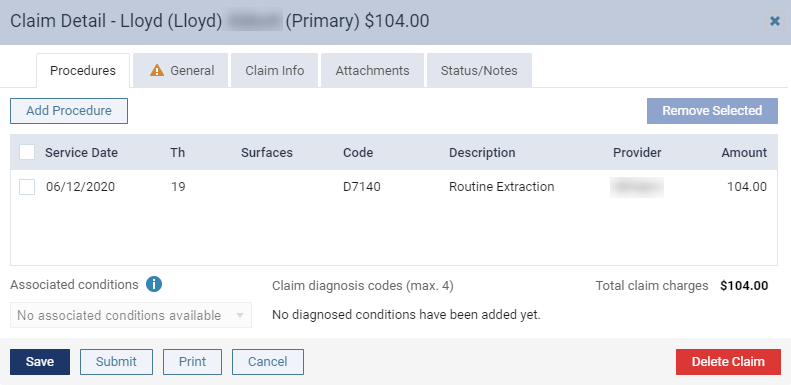
On the Unsent Claims page or Sent Claims page, clicktap a claim to display the Claim Detail window.
Tip: You can also display the Claim Detail window from the patient's Insurance Claims page or the patient's Ledger page.
-
ClickTap the Attachments tab.
The options for managing attachments become available.

-
Select the All check box to select all attachments from the claim or select the check boxes of specific attachments.
-
ClickTap Remove Selected.
-
When prompted, clicktap OK.
The attachments are removed from the claim but not from the patient's document manager.
-
Complete one of the following:
-
ClickTap Save to save.
-
ClickTap Submit to save the changes and submit the claim.
-
ClickTap Print and when prompted, clicktap Print to create a printable copy of the claim as a PDF file.
Note: Use this option only if the claim does not have any electronic attachments.
-
Comments
0 comments
Please sign in to leave a comment.