
You cannot delete a user account in Ascend Academic, but you can inactivate it. Once inactivated, people cannot use the account to log in to the system.
To inactivate a user
How to get there
-
From the Settings menu, under Location, clicktap User Accounts.
The User Accounts page displays.
-
On the User Accounts page, select a user account.
Tip: You can use the Search field to locate a specific user account by entering a part of their first or last name, username, or email address.
Note: The search results display a maximum of 100 entries. If necessary, enter specific search criteria.

The User Account Information page displays.

-
Set the Active toggle to No.

-
ClickTap Save.
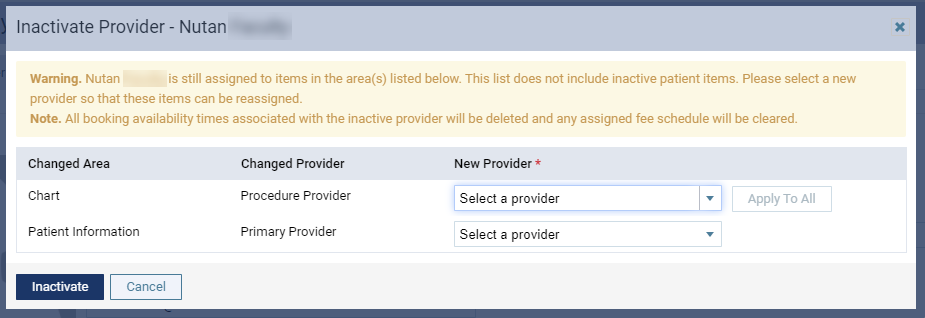
Important: If the user is a provider, the Inactivate Provider - [name of provider] window displays if they are set as the provider for anything in Ascend Academic, including upcoming appointments and procedures. You need to reassign these items to a different provider to inactivate the user.
-
If prompted, reassign the items to a new provider.
-
ClickTap the Select a provider drop-down list and select a new provider.
-
(Optional) To apply the same provider to the rest of the items, clicktap Apply To All. The button is enabled when you set a new provider to the first item.
-
When ready, clicktap Inactivate to confirm the inactivation.
-
Comments
0 comments
Please sign in to leave a comment.