
If, for example, your office is part of a large organization or performs specialty work (where essentially your entire patient base comes from referrals), you may have a long list of referral sources. To help you quickly find referral sources, there is a Search box at the top of the Referral Sources page that allows you to filter the list.
To manage or search for a referral source
To help you quickly find referral sources, there is a Search box at the top of the Referral Sources page that allows you to filter the list.
-
On the Settings menu, under Patient Care, select Referral Sources.
The Referral Sources page opens.
-
In the Search box, begin typing your search criteria. If any part of a referral source's last/referral name, first name, specialty, or referral type matches your search criteria, that source appears in the search results.

Notes:
-
The search results can only include up to 100 referral sources, so you may need to be more specific with your search criteria to narrow down the search results.
-
After you add or edit a referral source, your search criteria continues to appear in the Search box, you are returned to the page you were viewing (if the search results included multiple pages), the sorting of the list remains the same, and the maximum number of entries per page persists.
-
-
You can sort the list by clicking (or tapping) a column header: Last/Referral Name, First Name, Specialty, or Referral Type. By default, the list is sorted alphabetically by last/referral name. To reverse the order of sorting (ascending to descending; or descending to ascending), click (or tap) the column header that is currently being used to sort the list.
-
You can choose to display up to 20 or 50 entries per page, and you can navigate between pages by clicking (or tapping) a page number, Previous, or Next.

To merge referral sources
-
On the Referral Sources page (Settings > Referral Sources), click a referral to view the corresponding Referral Information. Then, click the new Merge button (in the lower-right corner).

Security Rights:
-
The existing security right has been renamed from “Manage referral sources” to “Create/edit referral sources,” but that right still allows a user to create or edit a referral source.
-
A new security right, which is labeled “Merge referral sources,” allows a user to merge referral sources. This right is available only if the user has the “Create/edit referral sources” right. Also, this right is NOT granted to any users by default.
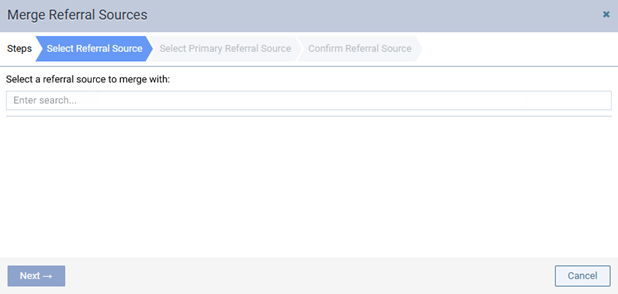
The Merge Referral Sources dialog box appears so you can merge the selected referral source with another one. The Select Referral Source tab is selected by default.
-
-
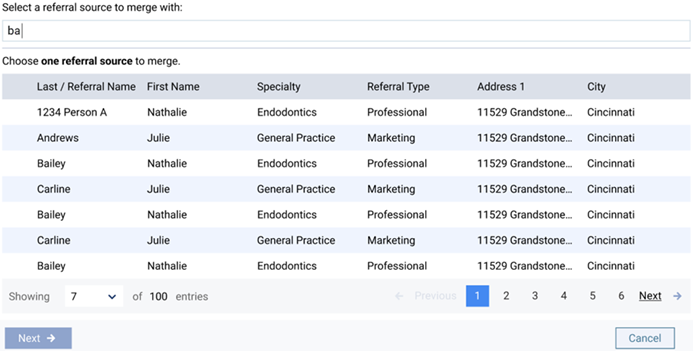
In the Select a referral source to merge with box, begin typing your search criteria, and then continue typing as needed to narrow down the results list. If there are many results, the results lists may consist of multiple pages.
Note: You can specify how many results to display per page.
-
Select the correct referral source.
-
Click Next.
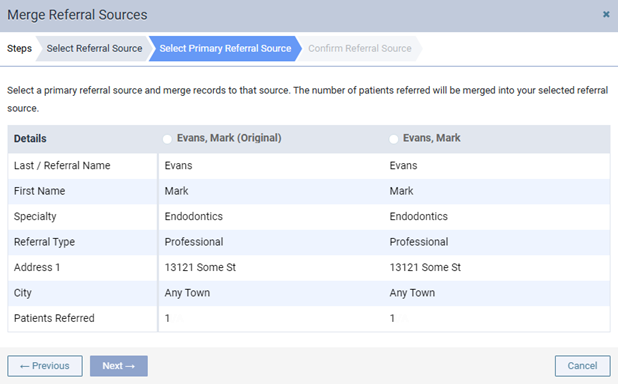
The Select Primary Referral Source tab is selected.
-
Select the referral source which will remain after the merge is complete.

Note: The number of patients referred by both referral sources will be combined into the selected referral source.
-
Click Next.
The Confirm Referral Source tab is selected so you can double-check what the results of the merge will look like after completion.

Warning: This action cannot be undone. When referral sources are merged, patients associated with them will be consolidated into the selected primary referral source.
-
Click Merge.
When the merge process is complete, a green “Success” message appears.
Notes:
-
When the merge process is complete, an entry is created in the Audit Log.
-
Reports will continue to pull referral data as they did previously, except now the data are more consolidated.
-
Comments
0 comments
Please sign in to leave a comment.