
You can inactive a medical alert to prevent future use or you can activate a medical alert to make it available for use.
Note: As you cannot delete a medical alert that is attached to any patients, it is recommended you inactivate it instead. Inactivating it does not affect patients that already have it attached to their records.
To inactivate or reactivate a medical alert
How to get there
-
From the Settings menu, under Patient Care, select Medical Alerts Library.
The Medical Alerts Library page displays.
-
On the Medical Alerts Library page, locate and select the medical alert:
-
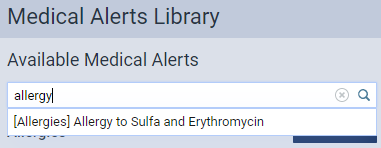
Locate using the search field.
-
Enter the medical alert in the Search for medical alert search field and select from the list.
-
-
Locate manually.
-
Expand the medical alert's category and select from the generated list.

Note: You can locate allergy medical alerts under Allergies and non-allergy medical alerts under Problems.
-
The options for editing become available.

-
-
Complete one of the following:
-
To inactivate, set the Active toggle to No.
-
To activate, set the Active toggle to Yes.
-
-
ClickTap Save.
Comments
0 comments
Please sign in to leave a comment.