
You can delete a medical alert from Ascend Academic's list of existing medical alerts.
To delete a medical alert
How to get there
-
From the Settings menu, under Patient Care, select Medical Alerts Library.
The Medical Alerts Library page displays.
-
On the Medical Alerts Library page, locate and select the medical alert:
-
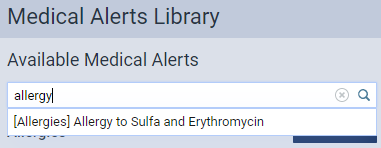
Locate using the search field.
-
Enter the medical alert in the Search for medical alert search field until you see it in the search results, and then select it.
-
-
Locate manually.
-
Expand the medical alert's category and select it from the generated list.

Note: You can locate allergy medical alerts under Allergies and non-allergy medical alerts under Problems.
-
The options for editing it become available.

-
-
ClickTap Delete.
Important: If the medical alert is being used by patients, the button is disabled and cannot be deleted. Instead, you can inactivate to prevent future use.
-
When prompted to confirm, clicktap OK.
Comments
0 comments
Please sign in to leave a comment.