


You can add or edit the file details of documents and images attached to a patient's record.
Note: When you edit a document's details, the modification is recorded in the Audit Log page as a Patient type with details of the modification in Details.
To edit a document's details
How to get there
-
From the Patient menu, under General, select Document Manager.
The patient's Document Manager page displays.
Note: If the correct patient is not already selected, use the Patient Search field to access the patient's record.
-
On a patient's Document Manager page, select the checkbox of a document.

Tip: If necessary, you can filter the list of documents using tags on the side of the page, search for documents using the Search by document name or tag search field, or sort the document list using the Sort By field. If viewing in List mode, you can also sort the document list by the Document Name and Date columns.

-
ClickTap the Edit
 icon to display the Edit File Details window.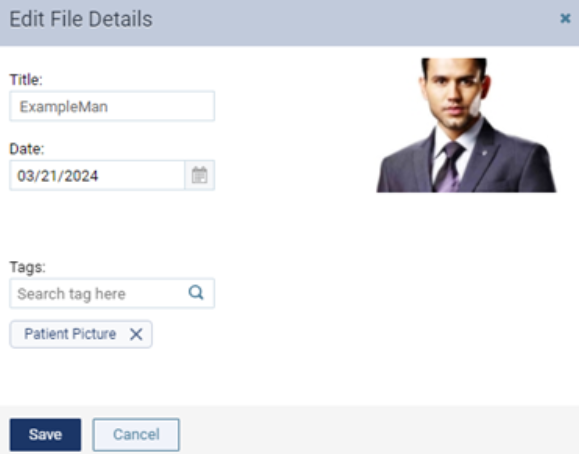
-
Modify any of the following as necessary:
-
Title - The name of the document.
-
Date - The date of the document.
-
Tags - The categories or classifications for the document or image.
-
To add a tag, enter the tag in the Search tag here field, and select the correct tag. Repeat as necessary to add up to five tags.
-
To remove a tag, clicktap the X next to that tag.
-
-
-
ClickTap Save.
Comments
0 comments
Please sign in to leave a comment.