
You can scan documents and images into a patient's record by using a scanner connected to your computer.
Notes:
-
A TWAIN driver built on version 1.9 or later is required to use this feature.
-
All modes (such as native and buffered) are supported.
-
Single-image transfers are supported.
-
Multiple-image transfers, automatic document feeders (ADF), and the TWAIN Direct standard (which is different from TWAIN) are not supported.
-
-
An acquisition agent provided by Henry Schein One must be downloaded and installed; this is the same acquisition agent used by Ascend Academic Imaging.
-
Scanning is available only on a Windows computer.
To scan documents
How to get there
-
From the Patient menu, under General, select Document Manager.
The patient's Document Manager page displays.
Note: If the correct patient is not already selected, use the Patient Search field to access the patient's record.
-
On a patient's Document Manager page, clicktap Scan.

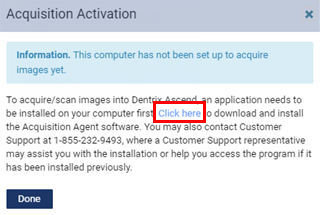
Note: If the acquisition agent is not installed, the Acquisition Activation window displays. Clicktap the Click here link to download and install the acquisition agent. After the installation is complete, clicktap Done.
-
When prompted with a Select a Scanner window, select a device under Device Name and clicktap Proceed with Scanning.

The third-party application for the selected device displays.
-
Scan documents and close the third-party application.
The scanned document is uploaded as a .jpg file and displays in the Scan Files window.

-
Complete any of the following:
-
Change a document name.
-
In the Title field of a scanned document, enter a new name.
-
-
Remove a document.
-
Next to a scanned document, clicktap the
 icon.
icon. -
When prompted to confirm, clicktap Delete.
-
-
Tag a document.
You can tag scanned documents to categorize or classify them. These tags are also used to locate documents in the Document Manager.
-
ClickTap in the Add Tag field, enter text to search for a tag, and select the correct tag. Repeat as necessary to add up to five other tags.
-
-
-
Clicktap Save.
Comments
0 comments
Please sign in to leave a comment.