
You can create fee schedules for use with billing and insurance. You can attach a fee schedule to a provider, to an insurance plan, to a location in your organization, or to a patient (as a discount plan).
Note:
To create a fee schedule
How to get there
-
From the Settings menu, under Production, select Fee Schedules.
The Fee Schedules page displays.
-
On the Fee Schedules page, clicktap Create New.

The options for creating a fee schedule become available.

-
Set the fields as necessary.
-
Name of fee schedule - Enter a name for the fee schedule.
-
Copy existing - To base this fee schedule on an existing fee schedule, select the fee schedule you want to copy from the drop-down list, and clicktap Copy.
-
-
(Optional) To import fees from a .csv file, clicktap the Bulk Edit menu and select Import fees from file.
-
(Optional) To increase or decrease all the fees in the fee schedule by the same amount or percentage, complete the following:
-
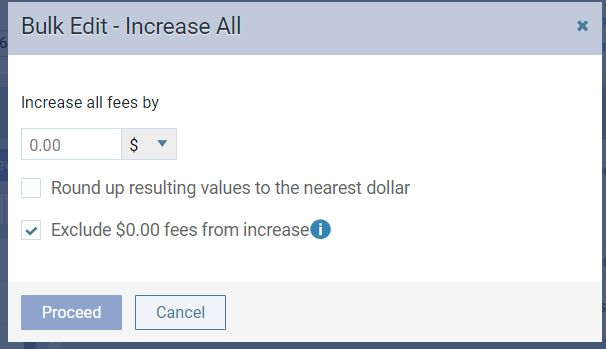
ClickTap the Bulk Edit menu and select Increase all by to display the Bulk Edit - Increase All window.
-
Under Increase all fees by, enter a positive or negative number (e.g., 20 or -20), and select $ or %.
-
Select the Round up resulting values to the nearest dollar checkbox if you want to round up the new fees.
-
If you are increasing fees, to ignore any current fees with a $0.00 amount (they will stay at $0.00; only non-zero fees will be increased), select the Exclude $0.00 fees from increase checkbox.
-
ClickTap Proceed. The resulting fees display in the New Fee column.
-
-
For each procedure, complete any of the following as necessary:
-
Under New Fee, enter or modify the fee that you charge as needed.
-
If you do not want to allow an automatic write-off to be posted, select the checkbox in the No Write-off column.
Tips:
-
To select or clear every procedure's checkbox at the same time, select or clear the checkbox at the top of the No Write-off column.
-
To select the checkboxes of a range of adjacent procedures at once, select the first checkbox of the range, hold the Shift key, and select the last checkbox of the range.
-
The Hide inactive procedures checkbox is selected by default, so only active procedures display. To temporarily display inactive procedures too, clear the checkbox.
-
To search for a procedure, enter a code or description in the Search by code/description field.
-
-
ClickTap Create.
Comments
0 comments
Please sign in to leave a comment.