
You can quickly attach multiple tags to a payment, in addition to selecting a payment type, to identify that payment. Ascend Academic has several default tags to choose from, and you can define your own (if your user account has the security right to create transaction tags enabled). Tags are very flexible, and they are a powerful tool for reporting. You can filter the Payment Analysis Report and the Day Sheet by tags that are attached to payments.
Note: Ascend Academic provides the following tags by default: American Express, CareCredit, Citi Health, Copayment, Discover, Late, MasterCard, Paid at visit, Prepayment, and VISA.
To tag a payment
-
When you are posting or editing a patient payment or an insurance payment, or when you are posting a patient payment while checking out a patient, select the Tags tab if it is not already selected.
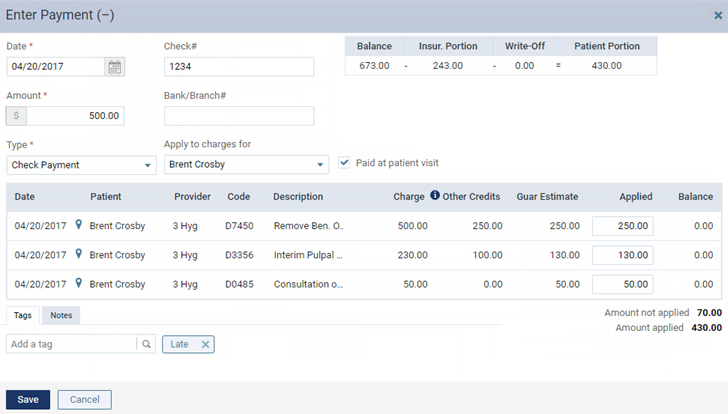
-
Complete any of the following:
-
Attach tags to the payment.
-
ClickTap the Add a tag search field and enter the name of a tag. Once you have entered at least two characters, the results list displays any matches (not case-sensitive). Continue as needed to narrow the results list.

-
Complete one of the following:
-
If the tag displays, select to attach to the payment.

-
If the tag does not display, enter the full name of the tag and clicktap + Create [tag name] to create and attach to the payment.
Note: The option to create a tag is available only if your user account has the security right to create transaction tags enabled.

Note: The new tag is now available to all Ascend Academic users in your organization.
-
-
-
Attach a mandatory tag and optional tag(s) to the payment.
-
ClickTap a mandatory tag under Mandatory tag(s).

-
(Optional) Select an optional tag from the Select a tag drop-down list.
-
-
Attach a mandatory tag to the payment.
-
ClickTap a mandatory tag under Mandatory tag(s).

Note: You can select only one mandatory tag.
-
-
Attach optional tag(s) to the payment.
-
Select an optional tag from the Select a tag drop-down list.

-
-
-
ClickTap Save.
Tip: To remove a tag from the payment, clicktap the X next to the tag.
Important: If tagging has been disabled for this payment type, you cannot search for or attach any tags.
Comments
0 comments
Please sign in to leave a comment.