
You can quickly view an insurance plan note for an insurance plan attached to a patient's record and edit that note as needed, or if there is not a note, add one. You can view an insurance plan note when you are presenting a treatment plan to a patient with insurance coverage by previewing their treatment plan. You can also add and edit an insurance plan note by editing the corresponding insurance plan.
To add or edit an insurance plan note from a patient's record
How to get there
-
From the Patient menu, under General, select Overview.
The patient's Overview page displays.
Note: If the correct patient is not already selected, use the Patient Search field to access the patient's record.
How to get there
-
From the Patient menu, under Insurance, select Insurance Information.
The patient's Insurance Information page displays.
Note: If the correct patient is not already selected, use the Patient Search field to access the patient's record.
-
Open one of the following pages of Ascend Academic:
-
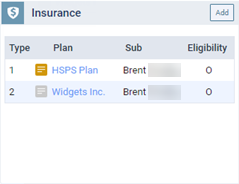
A patient's Overview page - The Insurance widget displays the patient's insurance plans, and an insurance plan note icon displays next to the name of each listed insurance plan.
-
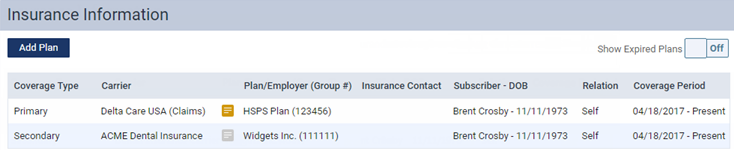
A patient's Insurance Information page - This page displays the patient's insurance plans, and an insurance plan note icon displays next to the name of each listed insurance plan.
-
-
Complete one of the following:
-
If an insurance plan has a
 icon, it has a note. Hover over the icon to view the note as a tooltip. To edit the note, clickTo view or edit the note, tap the icon.
 -
If an insurance plan has a
 icon, it does not have a note. To add a note, clicktap the icon.
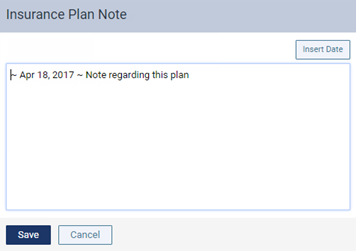
The Insurance Plan Note window displays.
-
-
Enter or change the text of the note as needed. The insurance plan note is specific to this insurance> plan. You can enter text, such as information from an EOB or other document from the insurance carrier. Also, you can insert the current date if needed. The note is accessible from all patient records that have this insurance plan attached.
-
ClickTap Save.
Note: You can also access and change the note as needed from the patient record of this patient's subscriber or from the patient record of any patient who has the same insurance plan as this patient.
Comments
0 comments
Please sign in to leave a comment.