
You can import a coverage table to update or add a coverage table template based on fixed, patient copayments. Currently, the importing of coverage tables for templates based on insurance coverage percentages is not available. Ascend Academic supports the uploading of .csv files (comma-delimited text files) that are no larger than 20 MB.
Tip: You can create and edit .csv files in a spreadsheet program or a text editor.
To import a coverage table template
How to get there
-
From the Settings menu, under Production, select Coverage Tables.
The Coverage Table Setup page displays.
-
On the Coverage Table Setup page, complete one of the following:
-
Create a new coverage table template:
-
ClickTap New Coverage Table.

The options for adding a coverage table template display.

-
Enter the name of the new template in the Template name field. A coverage table template's name must be unique for the Patient Copayment, $ type.
-
Select Patient Copayment, $ from the Type drop-down list to specify that the coverage should be based on a fixed amount.
The options for creating a Patient Copayment, $ template display.

-
-
Edit an existing coverage table template:
-
To create a coverage table template based on an existing template, expand Patient Copayment, $ and select a coverage table template.

Note: Patient Copayment, $ template type displays templates that are based on fixed, patient copayments.
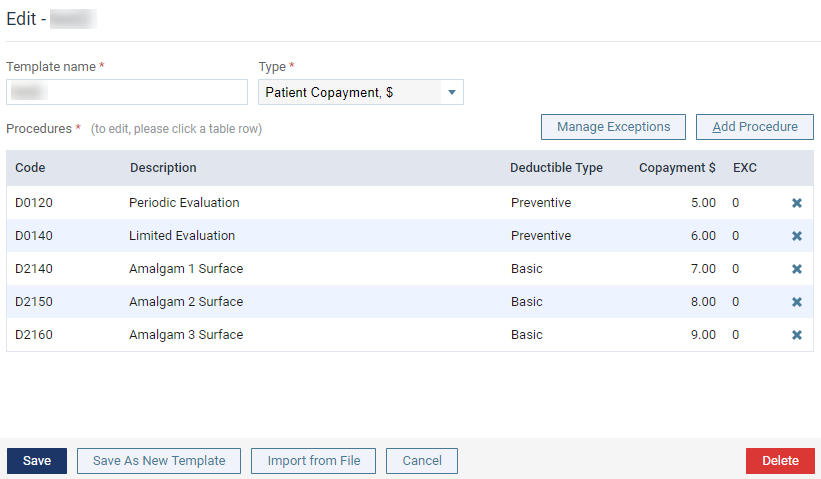
The options for editing the coverage table template display.
-
If necessary, enter a new name in the Template name field. The name must be unique for the Patient Copayment, $ type.
-
-
-
ClickTap Import from File.
The Import Table from File window displays with the File Upload tab selected.

-
Drag a .csv file from an open window to the window or clicktap Browse to select the correct .csv file.
The Select Code Column tab displays.

Note: If there are duplicate codes in the imported .csv file's coverage table, only the first one will be imported.
-
If the first line of the data from the imported file has a description of what each column contains, set the Table has header row toggle to On to remove it. The system will ignore the first row when importing the coverage table.

Note: You can also turn the toggle On or Off on the Select Fee Column tab.
-
Select the radio button of the column that contains the ADA Procedure Codes.
Note: Procedure codes in the imported .csv file's coverage table that do not exist in your organization's database will not be imported.
-
ClickTap Next -> or select the Select Copayment Column tab.
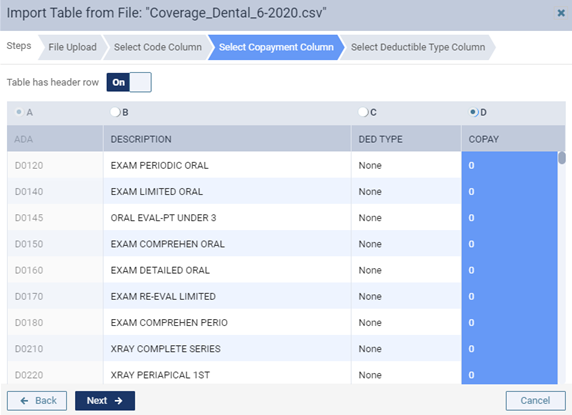
The Select Copayment Column tab displays.
-
Select the radio button for the column that contains the copays that will be imported. This column should only contain positive numbers (whole or decimal).
Note: Procedures that have an empty copay, a copay with invalid characters, or a copay with more than seven digits before a decimal will not be imported.
-
ClickTap Next -> or select the Select Deductible Type Column tab.
The Select Deductible Type Column tab displays.

-
Complete one of the following:
-
If the imported file has a column that contains deductible types, leave the Deductible type column is present in file toggle set to Yes and select the radio button of the column that contains the deductible types that will be imported.

Note: The allowed types are None, Basic, Preventive, Orthodontic, and Major.
-
If the imported file does not have a column that contains deductible types, set the Deductible type column is present in file toggle to No. The deductible type for all procedures is set to None.

-
-
ClickTap Import.
The resulting coverage table displays.

Notes:
-
If there are Skipped Procedure Codes, a yellow warning message displays and displays the procedure codes that were not imported.
-
If the Deductible Type for all procedures was set to None automatically, the types display in orange text.
-
-
(Optional) For any of the procedures, change the Deductible Type or Copayment $ as necessary.
-
Complete one of the following:
-
If you are creating a template, clicktap Create.
-
If you are editing a template, clicktap Save.
-
Comments
0 comments
Please sign in to leave a comment.