
Conditional fields let you create more responsive patient forms by showing follow-up questions only when they are relevant to a patient's response. This helps keep forms focused while still collecting additional information when needed.
For example, you can ask Do you have any allergies? using a Radio group with Yes and No options. If the patient selects Yes, a Textarea appears so the patient can provide additional details.
To add a conditional follow-up question
Go to Settings > Location > Form Builder.
On the Patient Forms page, locate the form you want to update.
In the Actions column, select the ellipsis (...), and then select Edit Form. The form opens in Form Builder.
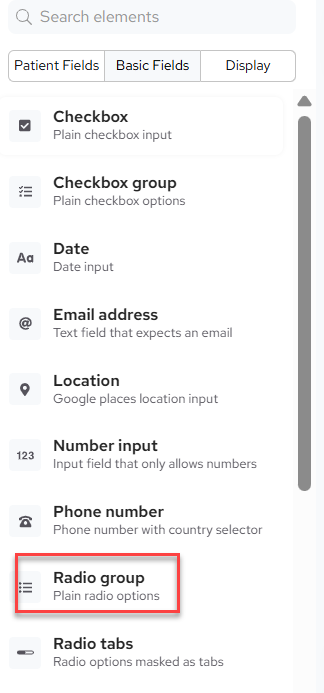
In the Elements panel, select Basic Fields.
Add a Radio group to the design workspace.
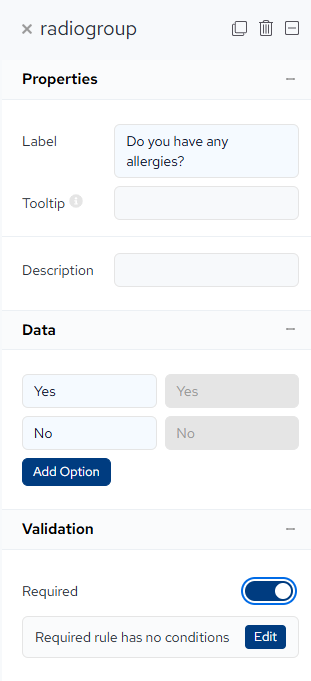
Select the Radio group and, in the Properties panel:
In Label, enter Do you have any allergies?
Under Data, select Add Option, and add Yes.
Select Add Option again, and add No.
If patients must answer the question, turn on Required.
From Basic Fields, add a Textarea below the Radio group.
Select the Textarea and, in Label, enter If yes, please list your allergies and describe the reaction you experience.
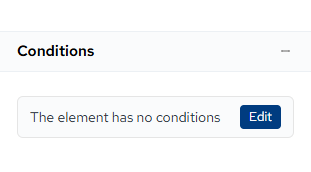
Expand Conditions: The message "The element has no conditions" appears.
Click Edit.
In the Conditions window, click Add condition.
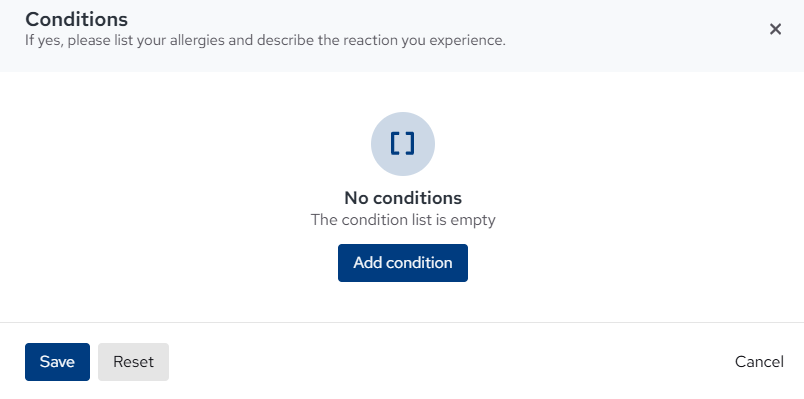
In the Conditions window, select Do you have any allergies?.
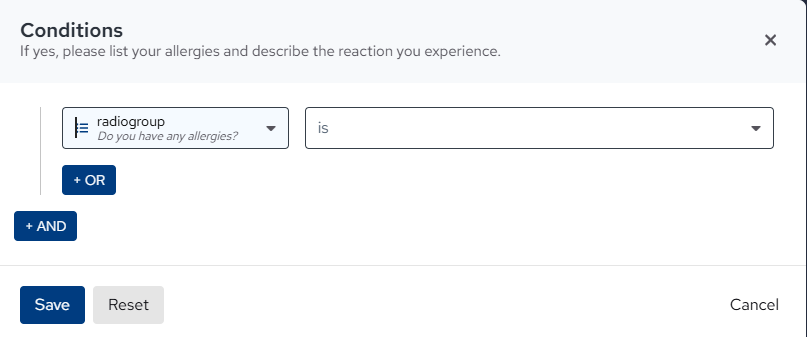
Set the condition so the Textarea appears when the response is Yes.
Select Save.
Switch to Preview mode and confirm that:
- Selecting Yes displays the Textarea.
- Selecting No hides the Textarea.
If needed, return to Editor mode and update the condition.
Select Next, review the applicable Form Settings, and select Done.
Comments
0 comments
Please sign in to leave a comment.