
You can create multiple simulation (sim) patients at once by copying a sim patient template and assigning a copy to a provider. You can assign copies to specific providers or to providers that are part of specific user groups. Once created, the copies will have its assigned provider's last name to help differentiate one copy from another.
When you copy a template, the following patient data are also copied from the template: patient forms (without the answers), treatment plan and existing procedures, conditions, medical alerts, perio exams, and prescriptions.
There are also patient data that won't be copied from the template: patient's confidential status, preferred appointment date and time, patient notes, recare, documents, treatment plan cases, completed procedures, appointments, ledger items, and ePrescriptions.
Notes:
-
You need the Create simulation patients security right to create multiple sim patients.
-
You can only assign one copy to a provider. If you want a provider to have multiple copies, you must perform this process multiple times.
To create multiple simulation patients
How to get there
-
From the Settings menu, under Patient Care, clicktap Simulation Patients.
The Simulation Patients page displays.
-
On the Simulation Patients page, select a template under Simulation Patients with Templates.
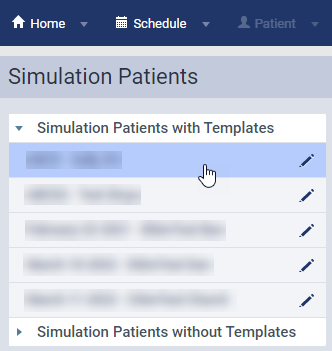
A list of template's existing cop(ies) display. If the template doesn't have any, the list displays a blank.

-
ClickTap Copy and Assign.
Note: The button is disabled if you do not have the Create simulation patient security right.
The Select primary provider window displays.

-
Complete one of the following:
-
Assign the cop(ies) to specific provider(s)
-
Select the Provider radio button to generate a list of providers at your location.
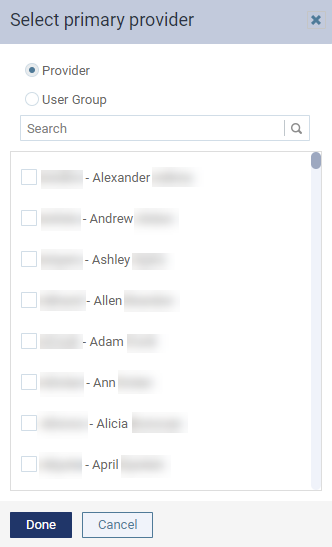
Note: The window displays the list of providers in alphabetical order of their short name.
-
Select the checkbox(es) of the provider(s) you want to receive a copy of the template.
Tip: You can use the Search field to locate a specific provider by their short name, first name, or last name.
-
-
Assign the cop(ies) to user group(s)
-
Select the User Group radio button to generate a list of user groups at your location.
Note: The list displays in alphabetical order.
-
Select the checkbox(es) of the user group(s) you want to receive a copy of the template.
Tip: You can use the Search field to locate a specific user group by its name.
Important: If you select multiple user groups and there's a provider that belongs to multiple selected groups, the provider will only receive one copy of the template.
Example: You select three user groups and a provider belongs to all of them. That provider will only receive one copy of the sim patient record.
-
-
-
When ready, clicktap Done.
The page refreshes to display the template with the new cop(ies).
Tip: You can select a listed copy to edit its patient information.
Comments
0 comments
Please sign in to leave a comment.