
You can change a patient's insurance plan order by swapping the order.
Note: To swap the plan order, you need the Edit Ins. Plan for Patient security right.
To change the coverage order of patient insurance plans
How to get there
-
From the Patient menu, under Insurance, select Insurance Information.
The patient's Insurance Information page displays.
Tip: You can also access the Insurance Information page from the patient's Overview page > Insurance widget.
Note: If the correct patient is not already selected, use the Patient Search field to access the patient's record.
-
On a patient's Insurance Information page, review the order of their insurance plan information.

Note: If the patient only has an active secondary insurance plan, a No Primary Insurance Coverage message displays where the primary is listed.

-
Complete any of the following:
-
Swap the order of the active plans to set the primary as the new secondary plan and the secondary as the new primary plan.
-
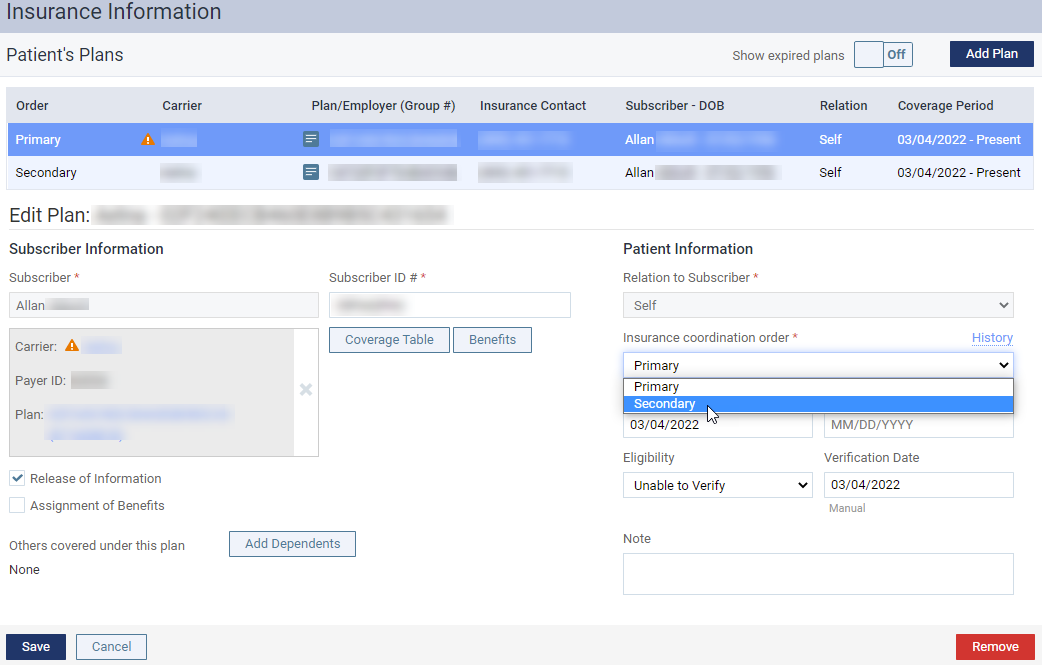
Select a listed plan.
-
From the Insurance coordination order drop-down list, select Primary or Secondary as necessary.
-
ClickTap Save.
-
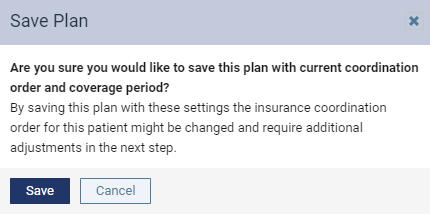
When prompted with the Save Plan window, clicktap Save to confirm.
The Change Insurance Coordination Oder for [patient's First and Lastname] - [patient's birthdate in MM/DD/YYYY] window displays.

The window displays the following:
-
Current Order - The left side of the window displays the current order of the primary and secondary insurance plans. For primary, it displays when the plan expired. For secondary, it displays basic information on the plan, including its dependent claim(s).
Tip: If you need information on the claims, you can use the claim's Details link to display the Claim Detail window.

-
New Order as of Start Date - The right side of the window displays the order of the primary and secondary insurance plans after the swap. This section only displays claims associated with the insurance plans that won't be processed and completed by the time of the swap. If there are any claims that won't be processed and completed by the time of the swap, it displays on this section with an icon and a message on what will happen to the claim after the swap.
Icon Status of the Claim Details 
Unsent Displays for unsent claims that will be deleted after the swap. You can re-create the claims afterward.

Sent Displays for claims that are already sent to the insurance carriers but haven't been accepted by Change Healthcare (CHC).

Payment Received Displays for paid claims. These claims can't be deleted as they're already completed.
-
Start Date - Date field beside the New Order as of Start Date header. Displays when the swap will occur. By default, the field is enabled and set to today's date.

-
-
-
Set the secondary as the new primary.
Example: If the patient's primary insurance plan is expired and they have an active secondary plan, you can set the secondary as the new primary insurance plan.
-
Select the secondary plan and select Primary from the Insurance coordination order drop-down list.

Note: A warning message displays if the secondary has dependent claims.
-
ClickTap Save.
-
When prompted with the Save Plan window, clicktap Save to confirm.
The Change Insurance Coordination Oder for [patient's First and Lastname] - [patient's birthdate in MM/DD/YYYY] window displays.

The window displays the following:
-
Current Order - The left side of the window displays the current order of the primary and secondary insurance plans. For primary, it displays when the plan expired. For secondary, it displays basic information on the plan, including its dependent claim(s). If you need information on any of the claims, you can use the claim's Details link to open the Claim Detail window.
-
New Order as of Start Date - The right side of the window displays the order of the primary and secondary insurance plans after the swap. Claims associated with the active insurance plan won't display on this section of the window, as the swap occurs after the claims' service date.
-
Start Date - Displays when the swap occurs. As you're replacing the expired primary with an active secondary, the field is disabled and set to a day after the primary's expiration.
Example: If the primary expired on 02/02/2022, the field is set to 02/03/2022.
-
Important: There is no vice versa option in this scenario. If the patient has an active primary plan but doesn't have an active secondary plan, you can't set the primary as the new secondary plan.
-
-
-
ClickTap Change.
Note: This button is only available if there are no alerts and if all the claims that must be deleted are flagged for deletion.
-
If the Delete Claims window displays, clicktap Delete to confirm that you want to delete the claims that are flagged for deletion.
Comments
0 comments
Please sign in to leave a comment.