
All FQHC (Federally Qualified Health Center) facilities must offer a sliding fee discount program (SFDP) as one of the HRSA requirements. Additionally, clinics that are not FQHC may have policies designed to make quality dental care available to people who lack adequate insurance and who have limited income.
Sliding scale fees are variable prices for products, services, or taxes based on a patient's ability to pay. Such fees are thereby reduced for those who have lower incomes or those who have less money to spare after taking into account their personal expenses regardless of income. Sliding fees are applied at a patient level and not at the facility level. In Ascend Academic, you can offer a discount and specify the percentage or amount of a charge or the amount per visit that a patient will pay according to government poverty guidelines, family size, and annual income.
Notes:
-
Patients that are assigned to a sliding fee and fall within the scale amounts will have a message in their Patient Information page that reflects this discount arrangement.
-
The Audit Log tracks all changes to the discount fee scale.
-
A new Edit Discount Options right, which also requires the Review Discount Options right, controls the ability to edit the discount fee scale.
-
Sliding fee scale discount plans are location-specific.
To set up a sliding fee scale
How to get there
-
If you are not already viewing the correct location, select it from the Location menu.
-
From the Settings menu, under Production, clicktap Discount Options.
The Discount Options page displays with a default Patient Pays configuration that does not provide a discount.
-
On a location's Discount Options page, set any of the following options:
-
Poverty level - For each Family Size, enter the annual income for the 100% poverty level. To handle families with more than eight people, for Each ADDL, enter the amount that will be added for each additional family member to determine the annual income for the 100% poverty level. The annual incomes for the 200% poverty level appear for your reference.
-
Patient pays - For each poverty level range, enter a percentage or flat amount that a patient will pay per procedure or visit. From the list next to each box, select % per procedure, $ per procedure or $ per visit as applicable.
Note: If you select $ per vist and the Discount Options Settings window displays, use the Visit charge procedure field to search for and select the procedure to be posted for visits, and clicktap Save.
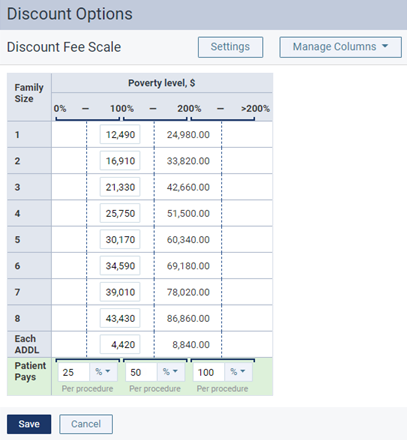
Note: To remove the 200% column, from the Manage Columns button menu, clicktap the X next to Column 200%.
-
-
Complete any of the following:
-
Exclude specific procedures from the discount fee scale.
-
ClickTap Settings.
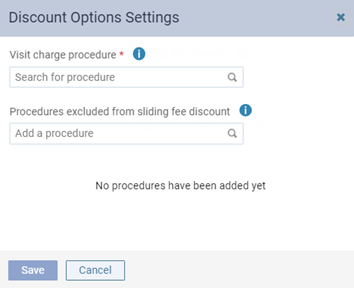
The Discount Options Settings window displays.
-
Use the Procedures excluded from sliding fee discount field to search for and select the procedures to be excluded. Posting or charting completed or planned procedures that are excluded results in a discount not being applied to the charges for those procedures.
Notes:
-
To remove an excluded procedure, clicktap the corresponding X.
-
Changes to the exclusions do not affect procedures that have already been posted or charted.
-
-
ClickTap Save.
-
-
Set a flat per-visit fee.
-
ClickTap Settings.
The Discount Options Settings window displays.
-
Use the Visit charge procedure field to search for and select the procedure to be posted for visits. The visit procedure applies only to poverty level ranges, and if met, only a flat per-visit fee is charged.
-
Close the Discount Options Settings window.
-
Set the Patient Pays method to $ per visit and enter a dollar amount in the text field.
-
ClickTap Save.
-
-
Comments
0 comments
Please sign in to leave a comment.