
You can customize only the description of a condition, its inclusion or exclusion from the favorites list, and the potential treatment options. Changing the description of a condition affects all instances of that condition that were charted previously in patients' records. Also, changes to a condition affect all locations in your organization.
To customize a condition
How to get there
-
On the Settings menu, under Production, clicktap Procedure Codes & Conditions.
The Procedure Codes & Conditions page opens.
-
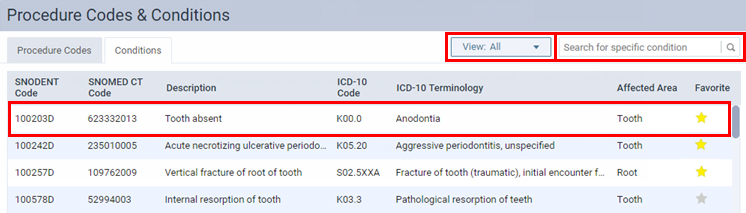
On the Procedure Codes & Conditions page, clicktap the Conditions tab and select a condition.
Tips:
-
To quickly locate a condition, enter a code or description in the Search for specific condition box.
-
To filter the list of conditions, from the View list, select whether you want to view all conditions or the favorites.
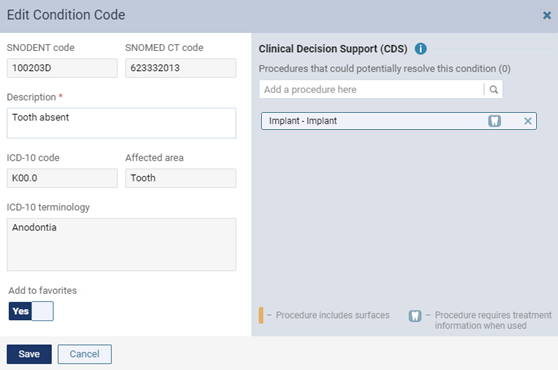
The Edit Condition Code window displays.
-
-
Modify the fields as necessary.
-
Description - Enter a description. You can search for conditions by the description wherever you can enter a condition.
Important: If you change a condition's description, all instances of the condition that have been charted previously are affected.
Note: You can also search for conditions by the SNODENT, SNOMED CT, or ICD-10 code.
-
Include in favorites - Favorite conditions are those used most commonly and display a yellow star next to them in the list of conditions on the Procedure Codes & Conditions page. Set the toggle to Yes to mark the condition as a favorite when you are charting conditions or set the toggle to No to make the condition not a favorite.
-
Clinical Decision Support (CDS) - You can associate procedures with this condition so that Ascend Academic recommends those procedures as potential treatment when users diagnose this condition during a quick exam.
Note: You can add any number of procedure codes and multi-codes to the condition. If multiple procedures codes are associated, they display in alphabetical order at the top of the Treatment Plan column.
-
To add a procedure, enter a procedure code or description in the Add a procedure here search box and clicktap the correct procedure.
-
To remove a procedure, clicktap the remove button.
-
-
-
ClickTap Save.
Comments
0 comments
Please sign in to leave a comment.