
This article can help you troubleshoot common issues with Ascend Voice.
Inaccurate recognition
Make sure to follow these recommendations:
-
ClickTap the blue Ascend Voice
 icon to turn on voice recognition immediately before you intend to speak commands, and turn off voice recognition immediately after you have finished charting. If voice recognition is turned on too early or remains active for too long, you may inadvertently trigger commands that affect your charting.
 -
If there is background noise in your office, such as conversations, you may experience some difficulty with Ascend Voice not hearing your voice. Ensure that you are using the type of microphone that is best suited for your office environment and that the microphone is installed correctly.
Slow response
Issues with Ascend Voice responding to or processing commands slowly are often due to poor wifi speed or the processing power of the machine. Please contact your IT professional for help improving these conditions.
Microphone is not working
If your microphone is not working at all (or Ascend Voice is not hearing anything) in Ascend, complete the following steps as needed to resolve the issue:
-
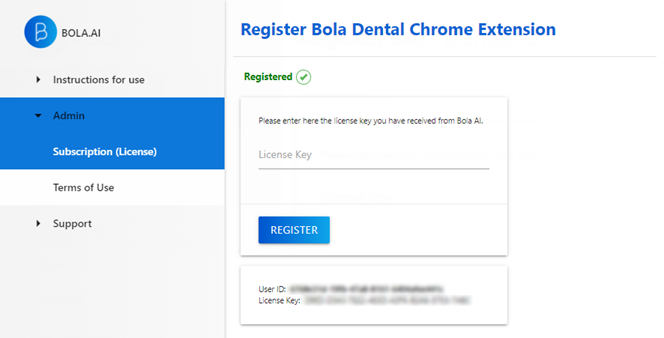
Check that your license key is still active on the Bola AI page > Subscription (License) tab. The license is active if the word "Registered" and a check mark display in green near the top of the page.
-
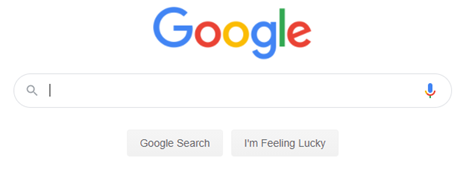
Make sure that google.com has permission to access the microphone and that the microphone works on that website:
-
ClickTap the microphone icon in the search field.
-
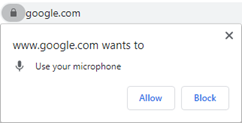
If the Chrome browser prompts you to grant permission for the website to use your microphone, clicktap Allow and clicktap the microphone icon again.
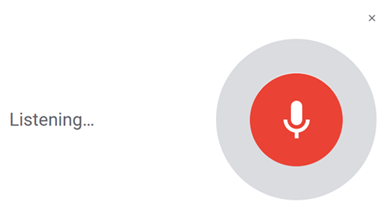
The page displays Listening... and a microphone icon.
-
Say something to search for.
-
-
Unplug and plug in the USB connector of the microphone, then repeat step 2.
-
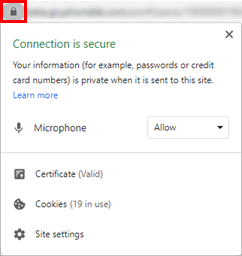
Make sure that Ascend has permission to access the microphone by clickingtapping the View site information icon next to the Ascend website address. On the menu that appears, check the microphone permission:
-
If Block is selected in the list next to Microphone, the microphone is blocked.
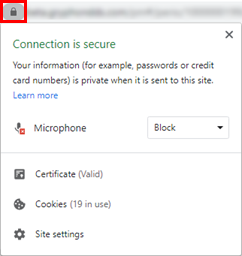
To unblock the microphone, complete the following:
-
Select Allow from the list next to Microphone.
-
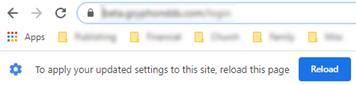
ClickTap Reload to reload the website and apply the change.
-
-
If Allow is selected in the list next to Microphone, the microphone is not blocked.
-
-
Close all open browser tabs and windows, then restart the browser.
-
Restart the computer.
Comments
0 comments
Please sign in to leave a comment.