
You can edit a perio exam with Ascend Voice that was performed in the past 48 hours.
Important: You cannot edit an exam that was done more than 48 hours in the past.
If you did not complete a perio exam in one visit and saved the in-progress exam as a draft, you can resume work on the draft until the exam is complete.
To edit a perio exam and use voice commands
How to get there
-
From the Patient menu, under Clinical, select Perio.
The patient's clinical record displays with the Perio tab selected.
Note: If the correct patient is not already selected, use the Patient Search field to access the patient's record.
-
On the Perio tab of a patient's clinical record, clicktap the exam drop-down and select an exam.

-
ClickTap the Manage button menu and select Edit Exam.

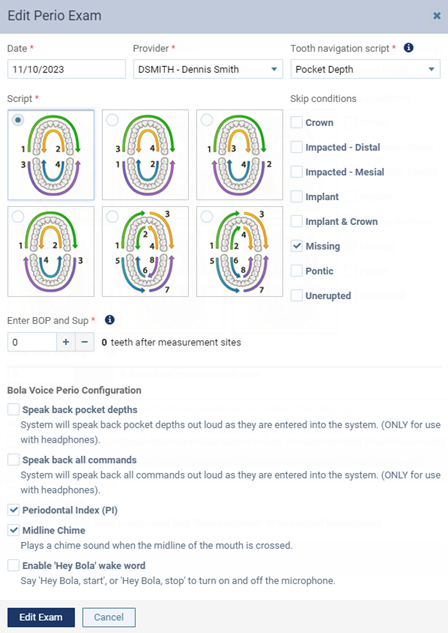
The Edit Perio Exam window displays.
-
Modify the necessary options, such as the arch and tooth sequence and the teeth to be skipped.
-
Date - You cannot change the date of the exam.
-
Provider - If necessary, select a different provider.
-
Tooth navigation script - Select a script that allows you to enter primarily pocket depths, primarily gingival margins, pocket depth and gingival margin at each measurement site, primarily mucogingival junctions, the pocket depth and mucogingival junction at each measurement site. A selection frame will display next to the specified measure (PD, GM, or MGJ) during the exam.
-
Skip Hard Palate for MGJ - If the Tooth navigation script field is set to Pocket Depth & Mucogingival Junction or Mucogingival Junction, a Skip Hard Palate for MGJ toggle displays. By default, the toggle is On, so the lingual side of the upper arch will be skipped because MGJ measurements cannot be taken in that area. To include the lingual side of the upper arch in the script, set the toggle to Off.
-
Script - Select the method that you will use to move around the patient's mouth to take perio measurements.
-
Skip conditions - Specify if any teeth will not get examined. Teeth with any of the selected conditions will be skipped automatically.
-
Enter BOP and Sup [#] teeth after measurement sites - Enter the number of teeth that you must measure before you can start entering bleeding and suppuration.
Example: If you enter 4, you must enter measurements for Distal, Center, and Mesial on the Facial side of teeth one through four) unless you clicktap a different area of the exam than where the script starts. Zero (0) indicates that you can start entering bleeding and suppuration immediately upon starting the exam. Also, as you follow the script to continue charting, the selection frame for BOP and Sup trails behind the current position by the specified number of teeth (as with our example of four, if the current position is tooth 10, the selection frame for BOP and Sup is on tooth six).
Important note for Ascend Voice:
-
Enter zero (0) if you want the flexibility to use voice commands to chart bleeding and suppuration on any tooth regardless of which tooth has the BOP/Sup selection frame.
-
Use a number greater than zero if you will use voice commands to chart bleeding and suppuration only for the tooth that has the BOP/Sup selection frame. If you attempt to use a voice command to apply bleeding or suppuration on a different tooth, Ascend Voice will apply it to the wrong tooth.
-
-
-
Set up the Bola Configuration options.
-
Read Back to Me PDs - Select the check box to enable a voice to repeat back to you what Ascend Voice has heard and entered, while you are charting pocket depths or gingival margins continuously for a perio exam. This can help you stay on track.
Note: Changing this option affects this perio exam and the default selection for other perio exams.
-
Read Back to Me Intents - Select the check box to enable a voice to repeat back to you what Ascend Voice has heard when you speak a command, This can help you stay on track.
Note: Changing this option affects this perio exam, the default selection for other perio exams, and clinical notes.
-
Periodontal Index (PI) - Select the check box to have Ascend Voice to display the periodontal index after you finish an exam.
-
Midline Chime - Select the check box to have a feedback sound (a click-pop) play when your charting of a perio exam has crossed the midline of the mouth.
Note: Changing this option affects this perio exam and the default selection for other perio exams.
-
Enable Wake up word & stop word - Select the check box to allow Ascend Voice to start or stop when you speak the applicable voice commands ("Bola Start" and "Bola Stop") so you do not have to clicktap the microphone icon.
Note: Changing this option affects this perio exam and the default selection for other perio exams.
Note: These options are available only if the Bola AI browser extension is installed and registered on the computer.
-
-
ClickTap Edit Exam.
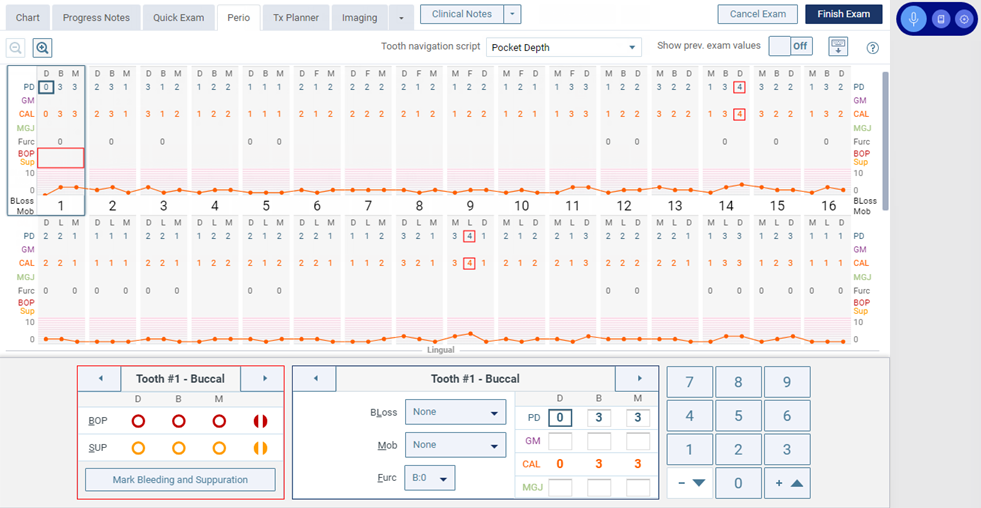
The options for editing the perio exam become available.
-
ClickTap the blue Ascend Voice
 icon or say, "Bola start" (if allowed).
Note: The Ascend Voice icon is available only if the Bola AI browser extension is installed and registered on the computer.
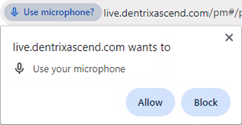
Tip: If the Chrome browser prompts you to grant permission for the website to use your microphone, clicktap Allow.
-
Dictate the exam with voice commands, and use your mouse and keyboard as needed to chart conditions that are not supported by Ascend Voice.
As you chart, the positions of the Tooth selection frame, the PD, GM, MGJ, and BOP/Sup selection frames change according to the exam options (from the New Perio Exam window).

-
To pause or stop voice recognition at any time, clicktap the red Ascend Voice
 icon or say, "Bola stop" (if allowed).
 -
When ready, complete one of the following to save your work:
-
If the exam is still in-progress and will be completed another day, clicktap Draft.
-
If the exam is finished, clicktap Finish Exam.
-
-
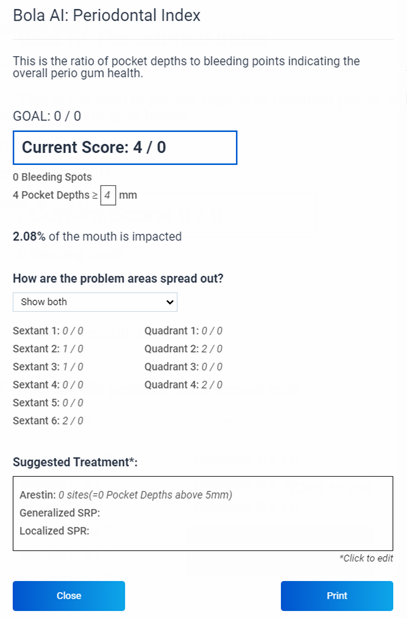
If prompted to print the summary with a Bola AI: Periodontal Index window, clicktap Print and clicktap Close.
Comments
0 comments
Please sign in to leave a comment.