
Multi-codes represent the group of services that you commonly render at the same time. You can edit multi-codes as needed for your locations. This does not affect procedures already posted to or charted in patients' records.
Note: You cannot delete a multi-code that is required by the Ascend Academic.
To edit a multi-code
How to get to there
-
If you are not already viewing the correct location, select it from the Location menu.
-
From the Settings menu, under Production, clicktap Procedure Codes & Conditions.
The Procedure Codes & Conditions page displays.
-
On a location's Procedure Codes & Conditions page, select a multi-code.
Notes:
-
To quickly locate a multi-code, type a code or description in the Search For Specific Procedure field.
-
You can also filter the list of procedure codes to view all, only favorites (most commonly used procedures), only active, or only inactive.

The Edit Procedure Code window displays.
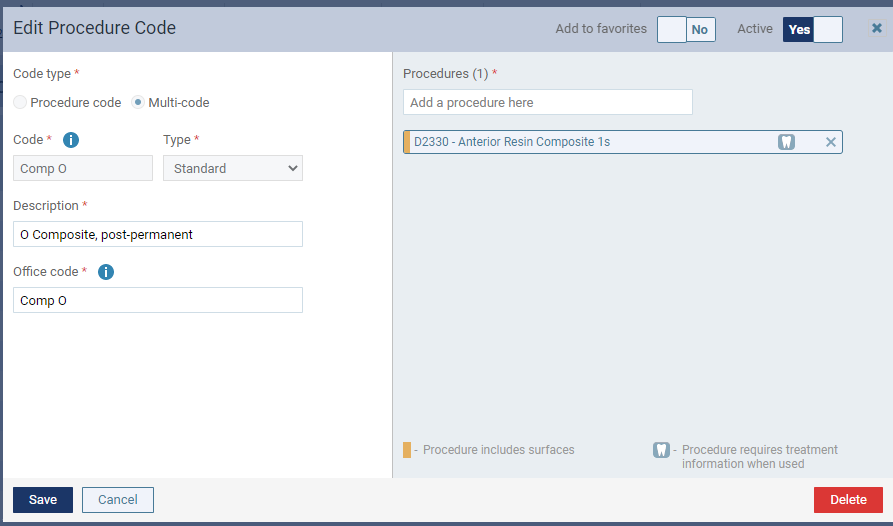
Standard
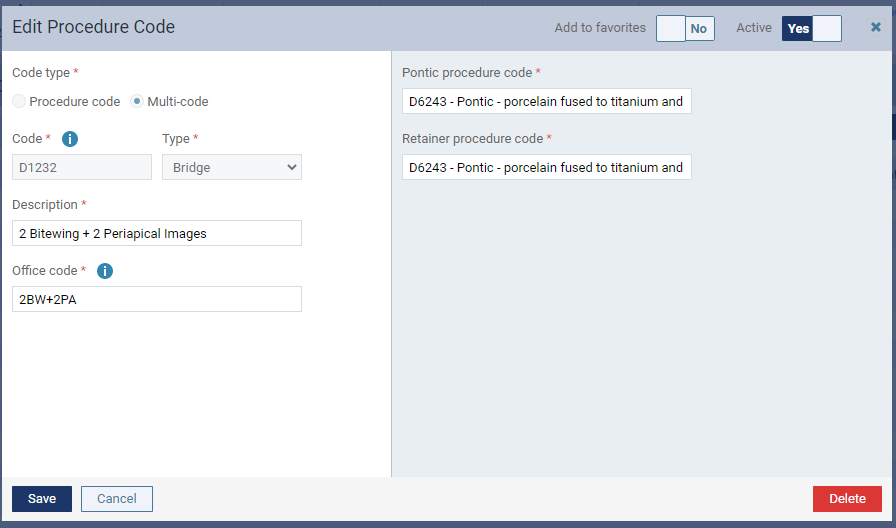
Bridge
-
-
Modify the description and office code, add and remove procedure codes, and set up the other options as necessary.
Configure the following options:
-
Description - Enter a description for the multi-code.
-
Office Code - Enter a shorthand version of the description for this multi-code.
-
Add to favorites - Favorite multi-codes are the ones you use most commonly. Set this toggle to On to mark this multi-code as a favorite so that you have quick and easy access to the multi-code when you are charting procedures. Favorites have a yellow star next to them in the list of procedure codes on the Procedure Codes page.
-
Active - To make the multi-code available for selection wherever procedure codes can be selected, set the toggle to Yes. To make the multi-code unavailable, set the toggle to No.
-
Procedures - Complete one of the following:
-
For a standard multi-code - Enter a procedure code or description in the Add a procedure here field to narrow the results list and clicktap the correct procedure (if the procedure has surface options, see the third note below for instructions on how to specify surfaces). Repeat this as needed to add other procedure codes to this multi-code.
Notes:
-
You cannot add a procedure code that requires a surface selection and a procedure code that requires a tooth selection to the same multi-code. If you have already added a procedure code that requires a surface or a tooth selection, when you search for another procedure code to add, only the allowed procedure codes are available for selection.
-
A procedure that requires a treatment area (such as a tooth or surface) to be selected when this multi-code is charted or posted has a tooth icon on it.

-
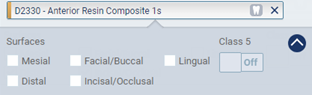
A procedure that requires one or more surfaces to be selected when this multi-code is charted or posted has a yellow bar on it (in addition to a tooth icon). If the surface options for a procedure are not already being displayed, clicktap that procedure; then, you can select the Surfaces and whether the surfaces are Class 5.
-
To remove a procedure code from this multi-code, clicktap the corresponding X button.
-
-
For a bridge multi-code - For the Pontic procedure code, enter a procedure code or description in the search field to narrow the results list and clicktap the correct procedure. For the Retainer procedure code, enter a procedure code or description in the search field to narrow the results list and clicktap the correct procedure.
Notes:
-
You can add an alias procedure code and a custom procedure code to a multi-code.
-
You can add any number of procedure codes to a multi-code.
-
You cannot add a multi-code to a multi-code.
-
You cannot edit or delete the procedures of the wisdom tooth extraction multi-code that is provided by default with Ascend Academic.
-
-
-
ClickTap Save.
Comments
0 comments
Please sign in to leave a comment.