
You can clear a coverage table that is attached to an insurance plan so that you can create one from scratch (not recommended) or to create one from a template or another insurance plan.
Important: Clearing an insurance plan's coverage table affects all patients covered by that insurance plan.
To clear a coverage table
How to get there
-
From the Patient menu, under Insurance, select Insurance Information.
The patient's Insurance Information page displays.
Tip: You can also access the Insurance Information page from the patient's Overview page > Insurance widget.
Note: If the correct patient is not already selected, use the Patient Search field to access the patient's record.
-
ClickTap an insurance plan.
The options for editing insurance information display.
How to get to there
-
From the Home menu, under Insurance, select Carriers.
The Insurance Carriers page displays.
-
Select an insurance carrier.
The options for editing the insurance carrier display.
-
Under Plans/Employers, select an insurance plan.
The options for editing the insurance plan display.
-
Complete one of the following:
-
While viewing an insurance plan that is attached to a patient's record, clicktap Coverage Table.
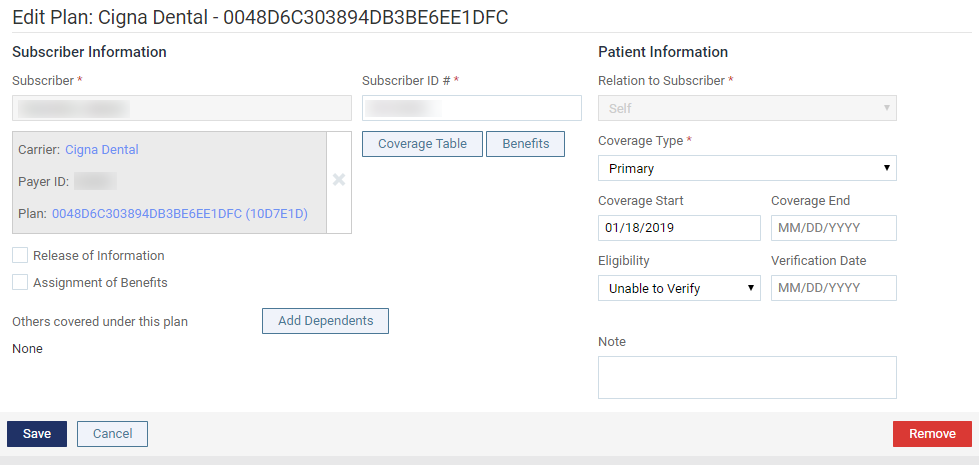
-
While viewing an insurance plan that is associated with a specific insurance carrier, clicktap Coverage Table.
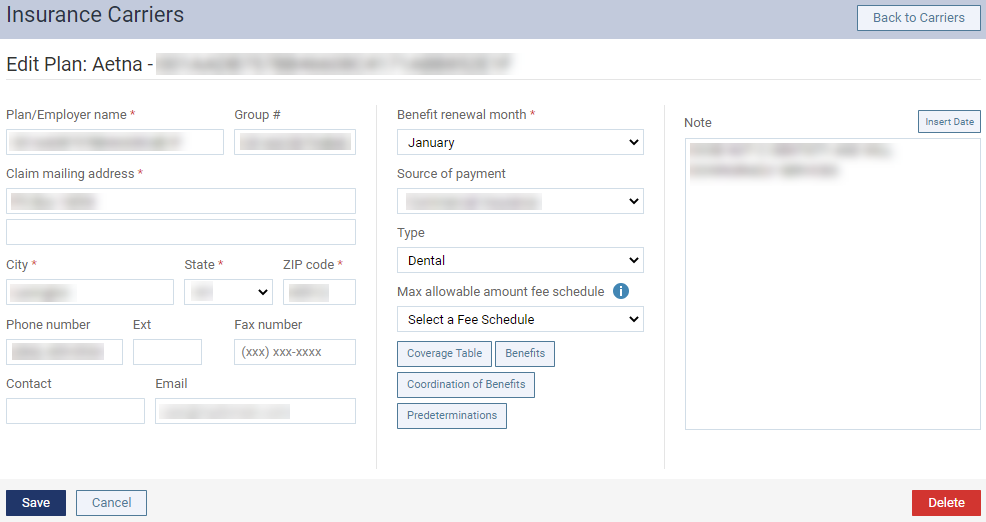
The Coverage Table window displays.

-
-
ClickTap Clear Coverage Table.
-
When prompted to confirm, clicktap Clear.
Comments
0 comments
Please sign in to leave a comment.