
You can delete exceptions that have been added previously to a coverage table that is attached to an insurance plan.
Tip: You can delete exceptions in a coverage table when you are editing an insurance plan that is attached to a patient's record, and you can delete exceptions in any of the coverage table templates.
Note: The exceptions in coverage tables are used by Ascend Academic to automatically calculate insurance estimates. If a patient has dual coverage, the exceptions of the primary insurance coverage are used. Also, a posted procedure with an exception will have a warning  icon next to it in the following areas of the system: the Enter payment window, the Enter credit adjustment window, the Patient Walkout window > Payment tab, and on the treatment plan case preview page. You can click the warning icon to view the details of the exception for the corresponding procedure.

To delete an exception
How to get there
-
From the Patient menu, under Insurance, select Insurance Information.
The patient's Insurance Information page displays.
Tip: You can also access the Insurance Information page from the patient's Overview page > Insurance widget.
Note: If the correct patient is not already selected, use the Patient Search field to access the patient's record.
-
ClickTap an insurance plan.
The options for editing an insurance information become available.
How to get to there
-
From the Home menu, under Insurance, select Carriers.
The Insurance Carriers page displays.
-
Select an insurance carrier.
The options for editing the insurance carrier become available.
-
Under Plans/Employers, select an insurance plan.
The options for editing the insurance plan become available.
-
Complete one of the following:
-
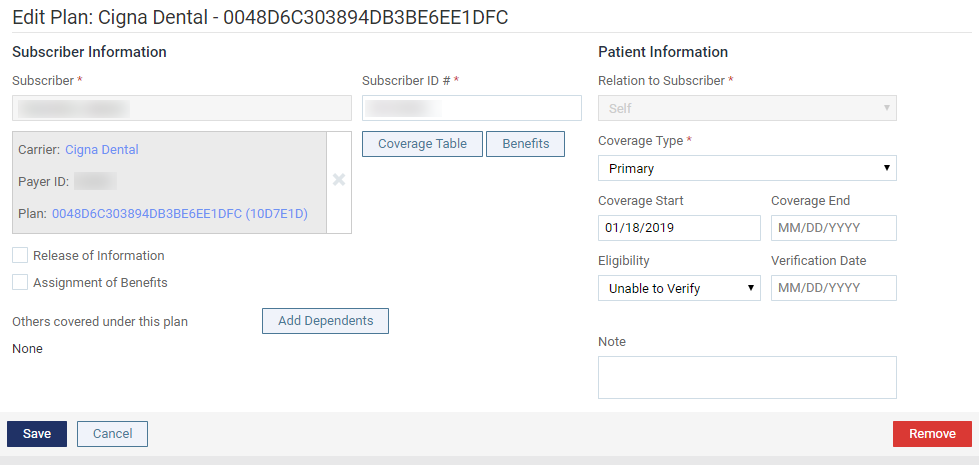
While viewing an insurance plan that is attached to a patient's record, clicktap Coverage Table.
-
While viewing an insurance plan that is associated with a specific insurance carrier, clicktap Coverage Table.
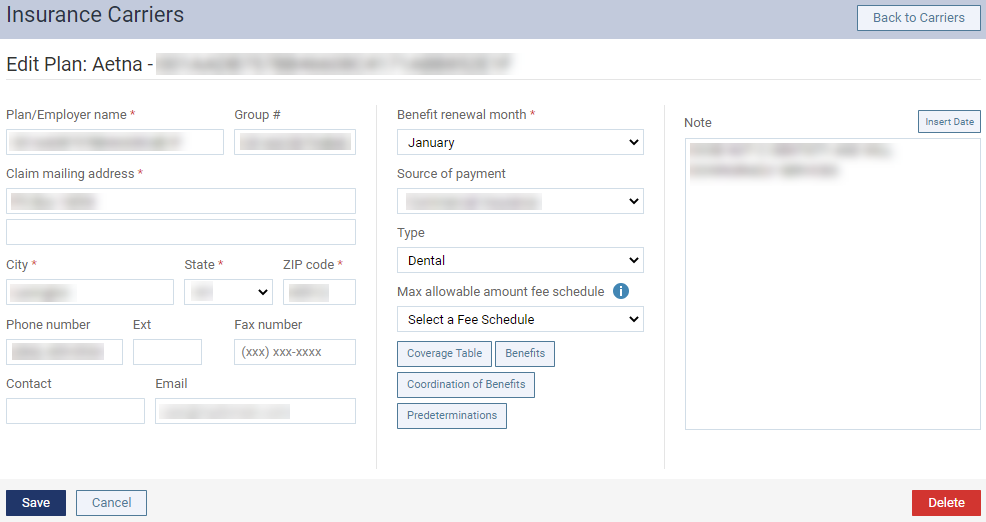
The Coverage Table window displays.

-
-
ClickTap Manage Exceptions to display the Manage Exceptions for [name of insurance plan] window.

-
Select a procedure code and clicktap the
 icon.
icon.
Tip: You can also delete it from the Edit Exception: [procedure code] window.
-
When prompted, clicktap Delete.
Comments
0 comments
Please sign in to leave a comment.