
You can view a payment plan from the Ledger of the guarantor with whom the plan is associated or from the Ledger of any of patients with that guarantor.
To view a payment plan
How to get to there
-
From the Patient menu, under Financial, select Ledger.
The patient's Ledger page displays.
Tip: You can also access the Ledger page from the patient's Overview page > Ledger widget.
Note: If the correct patient is not already selected, use the Patient Search field to access the patient's record.
-
Open the Ledger page of a guarantor with an active payment plan or a patient with a guarantor with an active payment plan, and complete one of the following:
-
ClickTap Payment plan.

-
From the Payment button menu, select Review payment plan.
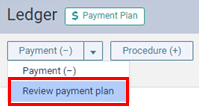
The Review Payment Plan window displays.

Note: The Current balance (remaining principal), Remaining interest, and Remaining amount of the payment plan display. Also, the amount of the Last payment (final payment) that will be paid displays.
-
-
You cannot edit the details of the agreement, but you can edit the notes and/or type additional notes.
-
If you want to view the initial agreement details (e.g., after payments have been applied to procedures associated with the plan, you want to see the agreement's principal amount), clicktap the Initial values
 icon.
icon.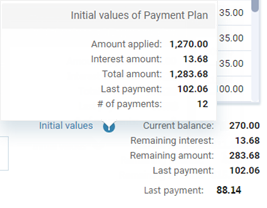
-
When finished viewing the payment plan, clicktap Done.
Comments
0 comments
Please sign in to leave a comment.