
You can create prescription templates for the most commonly prescribed drugs to enhance the efficiency of entering prescriptions. You can create the templates with the prescribed amounts.
Note: Prescription templates are available to all locations across your organization.
To create a prescription template
How to get there
-
From the Settings menu, under Patient Care, clicktap Prescriptions.
The Prescription Setup page displays.
-
On the Prescription Setup page, create a new prescription template using one of the following options:
-
To create a brand new prescription template, clicktap Add New Prescription.
-
Create a prescription template based on an existing template.
-
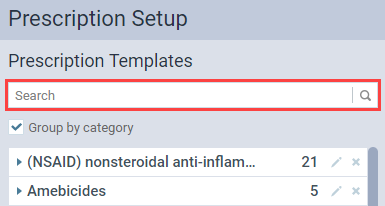
(Optional) Enter the name of an existing prescription template in the Search field to filter the list of prescription templates.
-
Locate and select a prescription template in the list of prescription templates.
Tip: If Group by category check box is selected, you can expand a section to locate a prescription template in that category.
-
The options for adding or editing the prescription template become available.
New

Based on Existing

-
-
Enter or modify the prescription details as necessary.
Set up the following options:
-
Drug category - Select the drug's category from the drop-down list. To create a new category, select Create a new category and enter the new category name in the generated window.

-
Drug name - Enter the drug's name.
Example: Tylenol III 1000mg.
-
Controlled substance - Select the check box if you want to specify that it's a controlled substance and to have the prescribing provider's DEA number on the prescription.
-
Sig - Enter the dosing instructions.
Example: Take one pill orally as needed for pain.
-
Dispense and Unit - Enter the amount to dispense in the Dispense field and select the unit of the dispence from the Unit drop-down list. If the desired unit doesn't exist, clicktap Add new unit and enter the new unit's name in the generated window.

Tip: If a generic version of the drug is not allowed, select the Dispense as written radio button. Otherwise, select Generic substitution permitted.
-
Refills - Enter the allowed number of refills. If refills are not allowed, enter '0'.
-
Patient note - Enter any additional notes for the patient.
-
-
Complete one of the following:
-
For brand new template, clicktap Create Prescription.
-
For a template based on an existing template, clicktap Save as New.
-
Comments
0 comments
Please sign in to leave a comment.