
You can compare a perio exam that you are currently viewing with any other exam that was recorded prior to the exam being viewed.
To compare perio exams
How to get there
-
From the Patient menu, under Clinical, select Perio.
The patient's clinical record displays with the Perio tab selected.
Note: If the correct patient is not already selected, use the Patient Search field to access the patient's record.
-
On a patient's clinical record > Perio tab,select an exam.
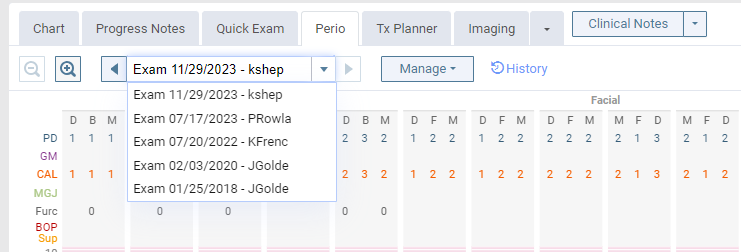
-
From the Manage menu, under Compare with, select the perio exam that you want to compare with the exam currently being viewed.

Note: If there are no Compare with dates on the menu, no exams have been recorded prior to the date of the exam that you are currently viewing.
The chart changes to the comparison view.

Notes:
-
For the PD, GM, and CAL measurements, a number in a gray box indicates that there was no change; a number in a pink box indicates that there was an increase; and a number in a green box indicates that there was a decrease.
-
On the line graph for PD, GM, and CAL, a solid line represents the readings from the currently selected exam (as indicated in the exam list); a dashed line represents the readings from the older perio exam (as indicated in the blue box near the top).
-
To view an explanation of all the abbreviations and symbols that are used for perio exam comparisons, clicktap the Legend
 icon.
icon.
-
-
Complete any of the following:
-
To change which exam is being compared to the selected exam, select a different exam from the Manage menu, under Compare with.
-
To view the exam being compared, clicktap the Show this exam link in the blue box near the top. To return to the comparison view, clicktap the Back to comparison link.

-
To zoom in and out, clicktap the Zoom In and Zoom Out icons.

-
-
When ready to exit the comparison view of the chart, clicktap Finish Comparison.
Comments
0 comments
Please sign in to leave a comment.