
With the Location Access Restrictions feature of Ascend Academic, you can add an additional layer of security by allowing users to log in to the system only from specific IP addresses, such as your office's local network. If you have multiple locations in your organization, you set up and enable this feature for each location separately. You can also specify by user role which users can bypass the restrictions.
Important:
-
To turn on location access restrictions for a location, you must have at least one external static IP address specified for the location. Once this feature is turned on, users can access the system for the location only via the designated internet gateways (unless the corresponding user roles have the Bypass Location Access Restrictions right selected).
-
Use location access restrictions only if your Internet Service Provider (ISP) uses a static IP address. Contact your ISP to verify that a static IP address is being used. If your ISP changes the IP address, users without the Bypass Location Access Restrictions right cannot access Ascend Academic until the invalid external IP address is replaced with the correct one, or the location access restrictions feature is turned off.
-
If other office and/or home networks must access Ascend Academic, add all applicable external static IP addresses. If your organization has multiple locations, you must open the Location Information page for each location, add all applicable external static IP addresses, and enable location access restrictions as needed.
Note: Institutions with restricted access limitations can allow users to access Ascend Academic evaluations from IP addresses outside clinics without compromising HIPAA policies. Once configured, users can access a location that is considered remote and defined as non-practicing. They are limited to pages and widgets related to evaluations so they cannot view pages that display patient PII and PHI data. For more information on configuration, contact Ascend Academic Support.
To restrict access to a location
How to get there
-
If you are not already viewing the correct location, select it on the Location menu.
-
From the Settings menu, under Location, clicktap Location Information.
The Location Information page displays.
-
Confirm that the user roles for the users who must access Ascend Academic for this location from anywhere have the Bypass Location Access Restrictions security right selected.
Note: This viewed from Settings > Location > User Roles. Select a role and click the Other category.
-
Go to the location's Location Information page > Basic Info tab.

-
Under Location Access Restrictions, add and test IP addresses as needed.
Compete the following:
-
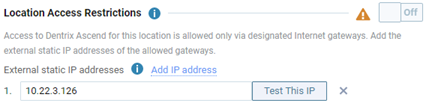
Next to External static IP addresses, clicktap the Add IP address link.
A numbered box displays. The system automatically detects your current internet gateway and inserts the IP address in the box.
-
Leave the default IP address entered, or enter the correct external static IP address of the internet gateway through which access to Ascend Academic should be allowed.
-
ClickTap Test This IP.
Important: You should test the IP address only if you are on premises (where the internet gateway is located).
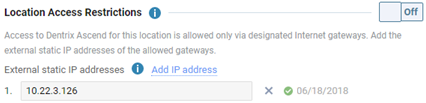
If the IP address passes the test, a green check mark symbol and the current date display.
-
Repeat Steps a - c to add and test more IP addresses as needed.
Note: To remove an IP address, click the Remove button
 .
. -
-
Set the Location Access Restrictions toggle to On. This toggle is available only if at least one IP address has been tested successfully.

A confirmation message displays.
-
ClickTap Enable if all the applicable user roles have the Bypass Location Access Restrictions security right selected.
-
ClickTap Save.
Comments
0 comments
Please sign in to leave a comment.